Back up saves, return to a known-good set, remove the newest test batch, update required frameworks and restore mods in small groups.
Distinguish not showing from not working
Paralives mods not working means the game detects or loads something but the promised feature fails. If the file cannot be found at all, use the separate mods-not-showing checklist first.
Write down the visible symptom: a feature does nothing, a script blocks loading, a save behaves differently or only one catalog item is broken. The symptom determines the safest next test.
- Detected but no feature
- Loading screen or save failure
- Only one item or creator set affected
- All mods stopped after an update
Find the broken mod with a small test set
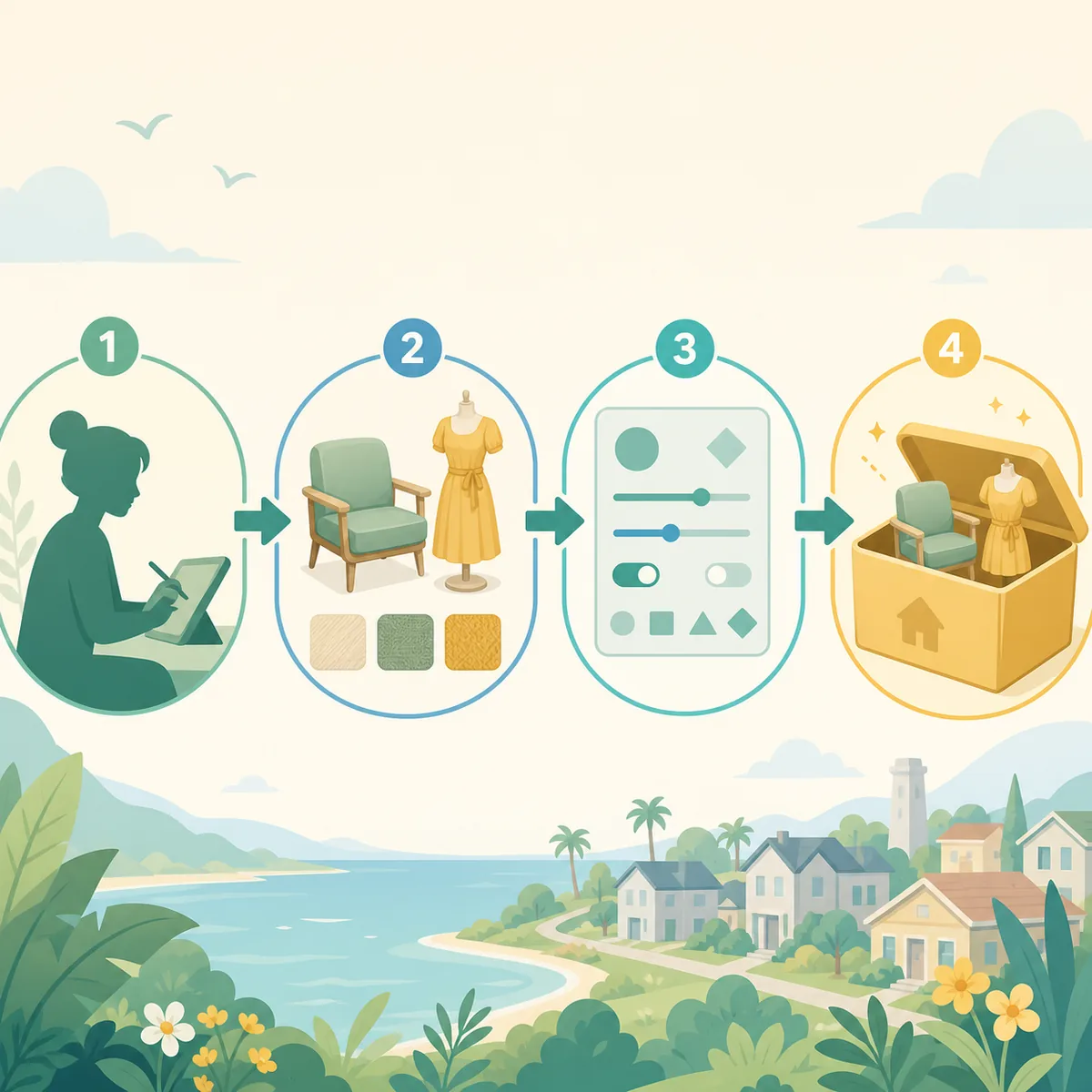
Back up the save, remove only the newest test batch and confirm that the game works with a known-good baseline. Restore half of the removed files, test again and repeat until the failure follows a small group.
This split-test method is safer than deleting the entire library. Keep Workshop subscriptions and manual files separate so you can identify which delivery path introduced the failure.
- Back upUse a copied save or a test household before loading important data.
- Return to baselineRun the game with the smallest known-good set.
- Restore by halvesAdd groups back until the same failure returns.
- Name the causeRecord the item, dependency and game build.
Check dependencies, duplicates and conflicts
A mod can be present and still fail when a shared mesh, framework or required package is missing or outdated. Check the creator instructions and keep one version of each dependency active.
Duplicate Workshop and manual copies can make testing misleading. Isolate the source you are testing, restart the game and confirm that the same file is not being loaded from two locations.
- Required framework or shared mesh
- Game-build compatibility
- Duplicate Workshop and manual files
- Conflicting scripts or catalog slots
When mods suddenly stop working after an update
A sudden failure across many items is usually a shared compatibility clue. Test one current item with its documented requirements before replacing every file. Check creator announcements and the official game update context without treating an unverified fixer as a universal solution.
When only some mods stop working, compare the newest additions, shared dependencies and the affected feature. Keep the exact error or behavior in your notes so the next test changes one cause at a time.
| Symptom | Starting point |
|---|---|
| One feature fails | Item version and dependency |
| Several items from one creator fail | Shared package or mesh |
| All scripts fail | Framework or game update |
| Save will not load | Backup, last batch and removal notes |
Protect saves while testing
Do not repeatedly open the only copy of an important save while a failing script is active. Use a copied save or a new test household, and restore the backup if the game behaves differently after a removal.
If the save remains missing after the mod is isolated, treat that as a separate save-location or game-state issue. Do not claim that the mod caused it without comparing a clean launch and the preserved backup.
Define a working baseline
A useful baseline records the game build, active sources, dependencies, test save and one expected result. Re-run that baseline after a Steam or game update before restoring the rest of the library.
If the symptom changes from a feature failure to a missing item, move to the mods-not-showing page. If the problem is source delivery, use the Steam Workshop or installation guide instead of adding unrelated keywords here.

Mods not working FAQ
Why are my Paralives mods not working after an update?
Return to a known-good baseline, check shared frameworks and restore the newest batch in small groups.
How do I know which mod broke Paralives?
Use a copied save, remove the newest batch and restore files by halves until the same failure follows a small group.
Why is Paralives stuck loading mods?
Check outdated scripts, missing dependencies, duplicate copies and the last installed batch before testing the save again.
Can mods affect a save?
They can affect loading or persistent data, so preserve the original and use a backup or test household while isolating the cause.